Posted on:
How to update NVM firmware for Intel i225 and i226 Ethernet controllers?
A step-by-step guide on updating the NVM firmware for Intel i225 and i226 Ethernet controllers to ensure optimal performance and compatibility.
The Intel i225 and i226 Ethernet controllers and their variants are widely known for their unreliable performance, namely random network disconnections, packet loss, and power saving incompatibility. Since the release back in Q4 of 2019, Intel unfortunately has not been able to fully resolve these various issues as far as I know. Some say the hardware itself is flawed, some says it is the firmware (non volatile memory - NVM) that needs to be updated, and some says it is the driver issue. In reality, it is probably a combination of all these factors.
In this article, I want to talk about the NVM firmware part. As of early 2026, the Intel i225 and i226 controllers are still widely used in many consumer devices, but Intel opted to not release the Intel i226 NVM firmware update tool for public download on their official website, while the Intel i225 counterpart is available. Instead, they only provide the firmware update tool to OEMs and system integrators. With that said, most users are stuck with the outdated NVM firmware that came with their devices. Still, there is a way to update the NVM firmware for these controllers, and I will show you how.
DISCLAIMER: Performing NVM firmware update carries inherent risks, including the possibility of bricking your device. Proceed with caution and at your own risk. Ensure you have a backup of important data and configurations before proceeding.
Prerequisites
Before we begin, make sure you have the following prerequisites:
- A computer with an Intel i225-V or i226-V Lan on Motherboard (LOM) or PCIe Network Interface Card (NIC). Note, only the V variants are discussed in this article. Performing the NVM firmware update on non-V variants may brick your device.
- A Windows operatiing system installed on the computer. Note, other operating systems should work too, but this guide focuses on Windows.
- Administrative privileges on the Windows operating system.
Steps to update NVM firmware
Step 1: Download NVM binary files
Download and extract the NVM firmware binary from here (forked from BillyCurtis repository). As always, be cautious when downloading firmware files from third-party sources. For the purpose of this article, I store the extracted files in ~ (your home location).
Step 2: Download Intel driver and NVM update Tool
Download Intel Driver and NVM Update Tool from here. As of this writing, the package version is 30.6.
- This package contains both the Intel Ethernet drivers and the NVM Update Tool. I recommend updating the Ethernet drivers to the latest version before proceeding with the NVM firmware update, unless you have a reason not to. This is to ensure you are not running an outdated driver or OEM customized driver that may interfere with the NVM update process.
- The driver for i225-V and i226-V locates in
~\Release_30.6\PRO2500\Winx64\W11folder inside the downloaded package. - There is no
setup.exefile in the package, so you will need to manually update the driver via Device Manager. - To do this, open Device Manager, locate your Intel i225-V or i226-V Ethernet controller under “Network adapters”, right-click on it, and select “Update driver”. Then, choose “Browse my computer for drivers” and navigate to the folder mentioned above. Follow the prompts to complete the driver update.
- If you have multiple Network Adapters showing up, make sure to update all of them.
Step 3: Understand NVM update tool structure
Extract the NVM Update Tool from the downloaded package. The tool is located in ~\Release_30.6\NVMUpdatePackage folder.
- If you use Intel i225-V, navigate to
~\I225\I225_NVMUpdatePackage_v1_00_Windowsfolder. Intel provide a convenientexefile to perform the update. Run the file as Administrator and follow the prompts to update the NVM firmware. - If you use Intel i226-V, instead of running an
exefile, you will extract it to find packaged binaries and a command line tool to perform the update. I personally use 7-Zip to extract theexefile. Continue to the next step.
Step 4: Confirm Ethernet controller details
Open Command Prompt as Administrator. To do this, search for “cmd” in the Start menu, right-click on “Command Prompt”, and select “Run as administrator”. Then, navigate to the ~\Release_30.6\NVMUpdatePackage\I225\I225_NVMUpdatePackage_v1_00_Windows\I225_NVMUpdatePackage_v1_00_Windows\I225\Winx64 folder. Copy the binaries extracted from step 4 to this folder. I choose I226-V\2.32 binaries because they are the latest as of this writing.
Let’s pause here for a moment and ensure the following before proceeding:
- You have administrative privileges in the Command Prompt.
- You have navigated to the correct folder containing the NVM Update Tool. Either via
cdcommand or by openning Command Prompt directly in that folder. - You have copied the correct NVM firmware binaries to this folder.
- If all is good, continue to the next step.
Run the following command nvmupdatew64e.exe -i -l inventory.txt to list specification and status of all Intel Ethernet controllers on your system. This step is to ensure that the NVM Update Tool can detect your Intel i226-V controllers properly. Afterward, you will see an inventory.txt file generated in the same folder. Open the file to verify the information, which should look similar to the following in structure:
# Detail of each line may vary from device to device, but the structure remains the same.
[00:008:00:00]: Intel(R) Ethernet Controller I226-V
Vendor : 8086
Device : 125C ===> Intel(R) Ethernet Controller I226-V
Subvendor : 8086
Subdevice : 0000
Revision : 4
LAN MAC : FFFFFFFFFFFF
Alt MAC : 000000000000
SAN MAC : FFFFFFFFFFFF
ETrackId : 8000028D ===> ETrack ID for 2MB NVM variant
SerialNumber : FFFFFFFFFFFFFFFF
NVM Version : 2.20(2.14) ===> 2.14 is the binary version
PBA : FFFFFF-FFF
VPD status : Not set
VPD size : 0
NVM update : No config file entry
checksum : Valid
OROM update : No config file entry
CIVD : 0.0.0
EFI : 0.1.1, checksum NoneThis helps me confirm the NVM Update Tool is functioning correctly and can communicate with the Ethernet controllers. Also, my NIC is using an outdated version 2.14 firmware, and it is a 2MB variant as indicated by the ETrackId.
Step 5: Configure NVM update settings
Now, open nvmupdate.cfg file in a text editor (e.g., Notepad) to configure the NVM update settings. You will need to specify the path to the NVM firmware binary file you extracted in step 4. The configuration file should look similar to the following:
BEGIN DEVICE
DEVICENAME: FoxPond1_I225_15F2_2MB_1p94_800003BB
VENDOR: 8086
DEVICE: 15F2 ===> Intel(R) Ethernet Controller I225-LM
SUBVENDOR: 8086
SUBDEVICE: 0001
NVM IMAGE: FoxPond1_I225_15F2_2MB_1p94_800003BB.bin ===> Binary within the same directory
EEPID: 800003BB ===> ETrackID
EEPROM MAP: Foxpond_Map_File_v01.txt
RESET TYPE: REBOOT
REPLACES: 80000180 800003BB => Original ETrackIDs being replaced
END DEVICEWe can ignore what is originally included in the file because based on the language, it is unique to Intel i225-LM 2MB variant, and create a new entry at the bottom of the file as follows (remember to remove my comments after the ===> symbols and save the file):
BEGIN DEVICE
DEVICENAME: Intel(R) Ethernet Controller I226-V
VENDOR: 8086
DEVICE: 125C ===> Intel(R) Ethernet Controller I225-LM
SUBVENDOR: 8086
SUBDEVICE: 0000
NVM IMAGE: FXVL_125C_V_2MB_2.32.bin ===> Binary within the same directory
EEPID: 80000422 ===> ETrackId, but for version 2.32, 2MB variant
RESET TYPE: REBOOT
REPLACES: 8000028D ===> Original ETrackID being replaced
END DEVICEStep 6: Perform NVM firmware update and verify result
Finally, run the following command to perform the NVM firmware update: nvmupdatew64e.exe -u -f nvmupdate.cfg -l update_log.txt. This command will initiate the update process using the configuration file you just edited. An update_log.txt file will be generated to log the update process. Monitor the Command Prompt for any prompts or messages during the update process. If there is no message, check the update_log.txt file for details. Once the update is complete, you may need to reboot your computer for the changes to take effect. Below is an example of a successful update log:
... (truncated for brevity) ...
[00:013:00:00]: Intel(R) Ethernet Controller I226-V
Flash update started.
NVM verification started.
Shadow RAM verification started.
Shadow RAM verification finished.
Flash verification started.
Flash verification finished.
NVM verification finished.
Flash update successful.
Device update successful.
... (truncated for brevity) ...
A reboot is required to complete the update process.If an error occurs during the update process, refer to the update_log.txt file for troubleshooting information. Common errors may include issues with the NVM firmware binary, incorrect configuration settings, or communication problems with the Ethernet controller. Below are some examples of error messages you may encounter:
Error: Config file line 11: File does not exist: 'FXVL_125C_V_2MB_2.32.bin'
Error: Cannot parse CONFIG VERSION parameter due to the mistakes in configuration file.
Error: Flash update failed.After successfully updating the NVM firmware, you can verify the update by running the inventory command again: nvmupdatew64e.exe -i -l inventory_post_update.txt. Check the inventory_post_update.txt file to confirm that the NVM Version reflects the updated firmware version (e.g., 2.32).
That’s it! You have successfully updated the NVM firmware for your Intel i225-V or i226-V Ethernet controller. Remember to monitor your network performance to see if the update resolves any issues you were experiencing. If problems persist, consider exploring other factors such as driver updates or hardware compatibility.
How was my experience after updating NVM firmware?
Well, hard to tell, but in a sense it got worse. Back in 2024, I was testing the Intel i226-V quad port NIC on my OpenWRT x86 setup. This means my NIC was using NVM version 2.14 at the time. Below was my observation at the time (copied from my homelab README).
It appears Intel I226-V is buggy with ASPM.
- With an Intel I226-V NIC, the system boots really slow, and when ASPM is enforced via
powertop, the system completely freezes because the CPU utilization gradually increase up to 100%. Probably, this is an upstream bug ofigc. There seems to be many report on this matter. Meanwhile, Realtek RTL 8125BG works perfectly.- Currently, there is no available NVM update for Intel I226-V (only Intel I225 series), so not sure if an NVM update can resolve the problem or not.
- Unrelated note: Normally,
ethXis based on whichever NIC is electrically closet to the CPU. For example,eth0is an integrated NIC,eth1is a nic at PCIE slot 1. However, the I226-V nic messes up the order, and making itself the first set of interface, frometh0toeth3, other NIC order is also changed too.
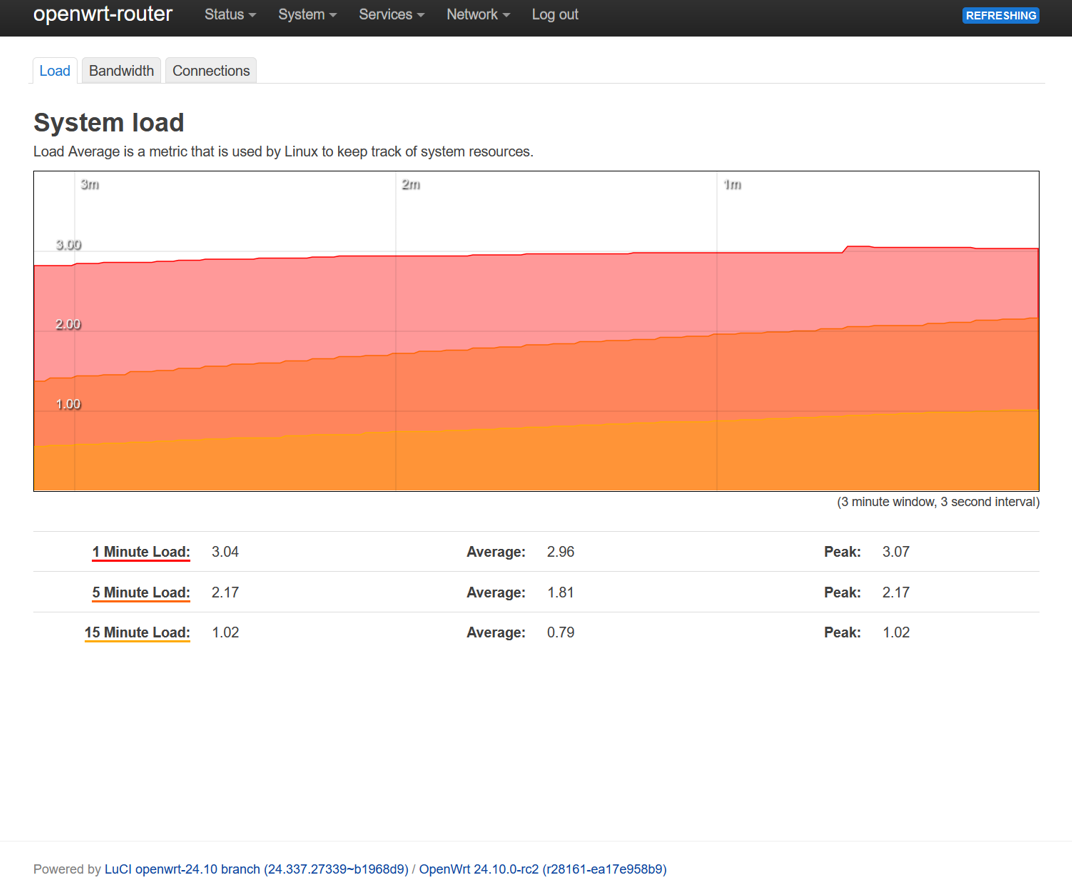
How about now after updating to NVM version 2.32? Installing the NIC makes my system experience a kernel panic and boot loop. I attached part of the kernel panic log below for reference. Looking at it, it seems the igc driver crashes. Is it a firmware issue? Driver issue (null pointer reference)? Hardware issue (PCIe Bus)? Not sure yet, but possibly a combination of all these factors again.
... (truncated for brevity) ...
[ 22.283426] pcieport 0000:00:1c.4: AER: Uncorrectable (Non-Fatal) error message received from 0000:0a:00.0
[ 22.2937641] igc 0000:0a:00.0: PCIe Bus Error: severity=Uncorrectable (Non-Fatal), type=Transaction Layer, (Requester ID)
[ 22.3051211] igc 0000:0a:00.0: device [8086:125c] error status/mask=00004000/00000000
[ 22.3129971] igc 0000:0a:00.0: [14] CmpltTO
[ 22.421718] genirq: Flags mismatch irq 145. 00200000 (eth2) us. 00200000 (eth2)
[ 22.4297171] ------------[ cut here ]------------
[ 22.434546] remove_proc_entry: removing non-empty directory 'irq/145', leaking at least 'eth2'
[ 22.443341] WARNING: CPU: PID: 128 at Oxffffffff812b701a
... (truncated for brevity) ...
[ 27.347954] CR2: 0000000000000080
[ 27.351617] ---[ end trace 0000000000000000 ]---
[ 27.356573] RIP: 0010:0xffffffffa0286787 [igc@00000000ae720c49+0x14000]
[ 27.363497] Code: 89 f7 c6 07 00 0f 1f 00 8b b3 b8 fe ff ff 31 c9 31 ff 85 f6 7e 5a 49 8b 84 24 a8 00 00 00 48 8b 94 cb c0 fe ff ff a8 04 74 35 <0f> b7 82 80 00 00 00 44 0f b7 82 82 00 00 00 41 89 f9 0f b7 72 44
[ 27.382861] RSP: 0018:ffffc90001b23e20 EFLAGS: 00010202
[ 27.388426] RAX: 0000000000000007 RBX: ffff888102044b68 RCX: 0000000000000000
[ 27.395875] RDX: 0000000000000000 RSI: 0000000000000001 RDI: 0000000000000000
[ 27.403316] RBP: ffffc90001b23e50 R08: ffff88810235aec0 R09: ffff88810004cac0
[ 27.410757] R10: 0000000000000007 R11: 0000000000000000 R12: ffff888102044000
[ 27.418208] R13: ffff8881020449c0 R14: ffff888102044bf8 R15: ffff888102044b70
[ 27.425640] FS: 0000000000000000(0000) GS:ffff88846f600000(0000) knlGS:0000000000000000
[ 27.434021] CS: 0010 DS: 0000 ES: 0000 CR0: 0000000080050033
[ 27.440075] CR2: 0000000000000080 CR3: 0000000002230004 CR4: 0000000000370ef0
[ 27.447508] Kernel panic - not syncing: Fatal exception
[ 27.453116] Kernel Offset: disabled
[ 27.456937] Rebooting in 3 seconds..I’m using OpenWRT 25.12.0-rc1 at the moment, and my environment has changed a lot since an intital test back in 2024. I have not investigated further nor attempting to reproduce the issue using my 2024 configuration. So for now, I would say the NVM firmware update did not help much in my case. Your mileage may vary.
Wrap up
Updating the NVM firmware for Intel i225 and i226 Ethernet controllers can potentially improve performance and resolve certain issues. However, it is essential to proceed with caution due to the inherent risks involved in firmware updates. Always ensure you have a backup of important data and configurations before proceeding with the update process. If you encounter any issues during or after the update, refer to the logs for troubleshooting information and consider exploring other factors such as driver updates or hardware compatibility.
If you find this article to be helpful, I have some more for you!
- Quantum Fiber W1700K teardown, board view, and UART pins
- What I learned when migrating hungvu.tech from IPv4 to IPv6 on AWS?
- OpenWRT as an x86 virtualized firewall in Harvester HCI
And, let’s connect!